1. Log in or Creating Your Account
For Existing Members, log into your Speedgreens account
For New Members,
- Enter your email address
- Create your password
- Select Remember Me
- Click Register Now!
2. Add Products and Checkout
- Add products to your Cart, and when you are ready, select Checkout.
- You’ll be directed to the checkout page,
-
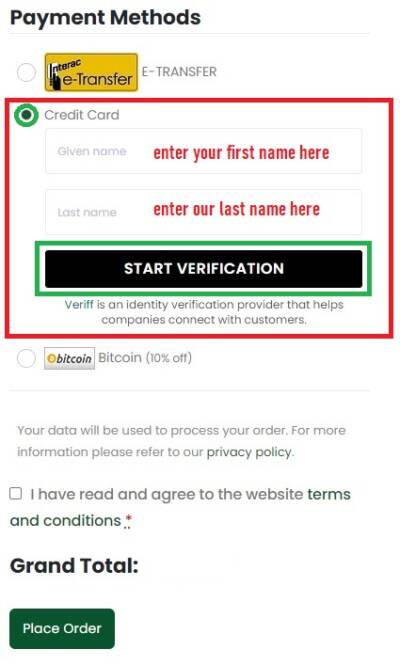
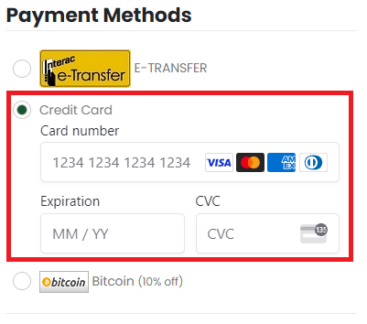
- under Payment Method options, select Credit Card
-
- Once Credit Card option is selected, you will need to;
- Enter the first and last name, associated with the credit card
- This first and last name must be similar to the name on the shipping address of your order
- Then, Start the Verification Process
- Enter the first and last name, associated with the credit card
3. Verifying your identity
Start the Verification Process
Once you have selected this option, the verification required to access the credit card payment option will begin.
This verification will be based on the first and last name you entered in Step 2.(3)
Veriff ID Verification
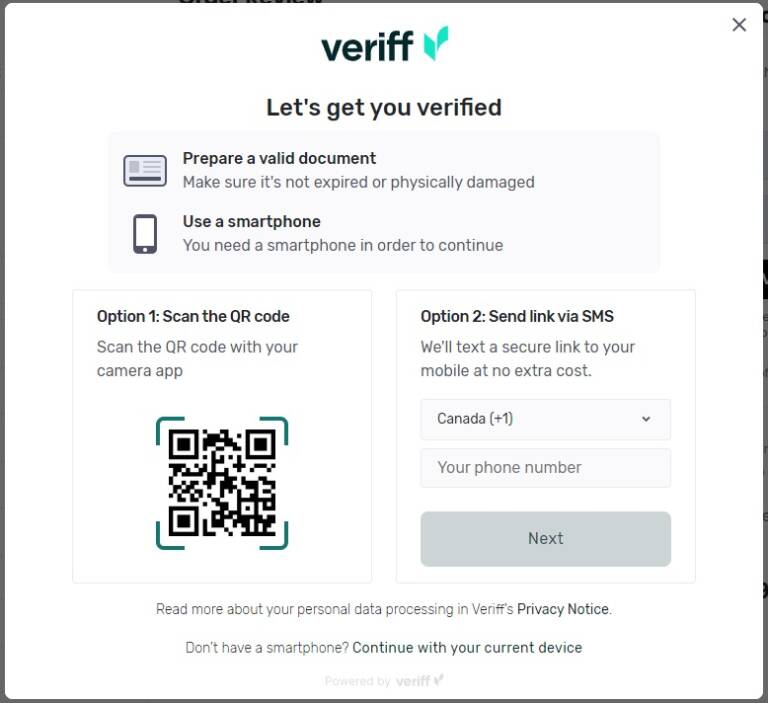
Once verification has started, you will have two options that can connect you to the Veriff ID Verification Session via your smartphone.
- scan the QR code with your smartphone camera
- enter your mobile number in the space provided, so Veriff can send you a link to your verification.
Accessing the Camera of you Mobile Phone
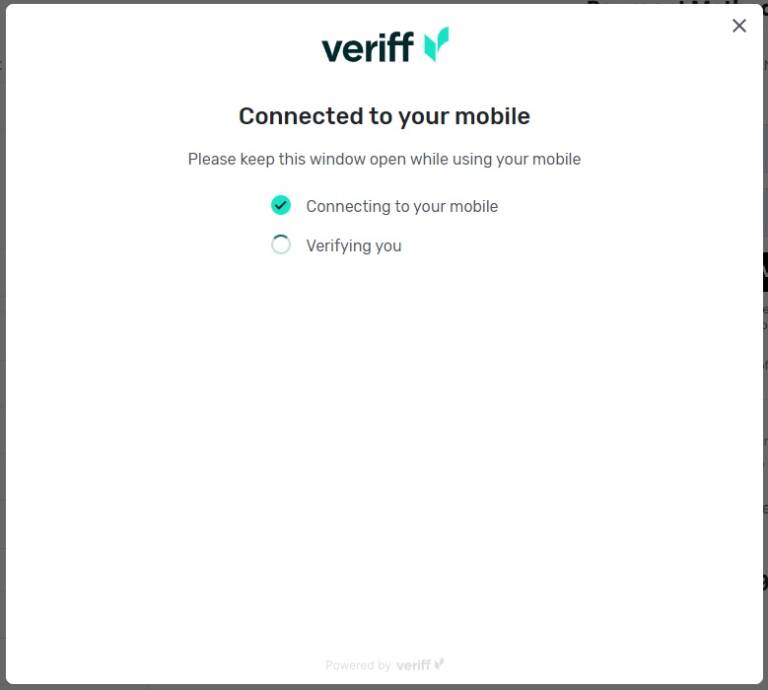
Once you are connected via your smartphone, “alchemy.veriff.com” – the verification software will ask for access to your smartphone camera. Access is required so that the software can take an image of:
- the front image of your government issued ID
- the back image of your government issued ID
- a front portrait image of yourself
4. Entering your Credit Card Number
Once you are verified, you will notice the credit card payment gateway appear at checkout.
- Log into your account
- Add your products to your shopping cart
- Navigate to the checkout page
- Enter in your credit card information
- Your credit card information must match the shipping address detail, if the postal code or any other detail is incorrect, the transaction will be declined!
- Place Order – to complete the purchase
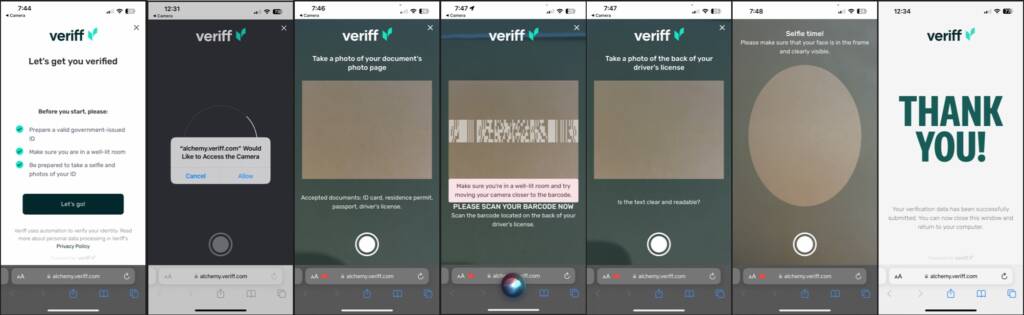
All steps in the verification process
- Start the Verification Process – Lets go!
- Allow Camera Access
- Take a photo of your document’s photo page
- Scan your Document’s Barcode
- Take a photo of the back of your document (if required, not required for some govt. id)
- Take a Selfie
- Completed!
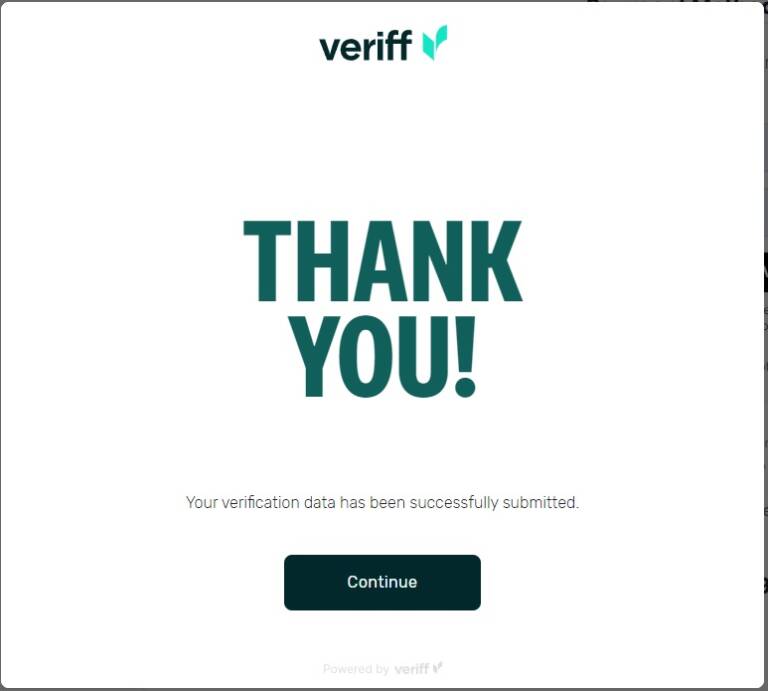
Verification and Confirmation Email
Once the verification is completed.
It will take less than 2 mins for you to be approved. A confirmation email will be sent to your email address and you will have access to credit card payments.
- Remember to refresh your screen or re-log into your account, so you can input your credit card details into the fields provided.
** If you’ve completed the verification process a